MetaTrader 4 remembers every trade you make, but it keeps them inside the terminal. SetupBook can pull them into your journal by itself: a small file called SetupBookSync runs inside MT4 and sends each trade to SetupBook the moment it closes. You type nothing. The setup takes about ten minutes, and you do it once.
This guide shows every click, with pictures, on Windows and on Mac. If you use MetaTrader 5, follow the MetaTrader 5 guide instead; the steps are almost the same, but the file is different.
Before you start
- A SetupBook account. It is free: sign up here.
- MetaTrader 4 installed on your computer and logged in to your broker account. Demo or live, any broker, build 600 or later (every build since 2014). The web terminal and the phone app cannot run the file; you need the desktop program.
- Ten minutes.
SetupBookSync only reads. It cannot open, change or close an order, and it never sees your password. The only secret it holds is the token from step 1, and that token can only write into your own journal. The source code is public at /ea/SetupBookSync.mq4, so anyone can check what it does.
1. Create the connection and copy the token
In SetupBook open Settings → Connections and press Add connection. Choose MetaTrader 4, leave the account on Create from the platform account, and press Create and show the token.
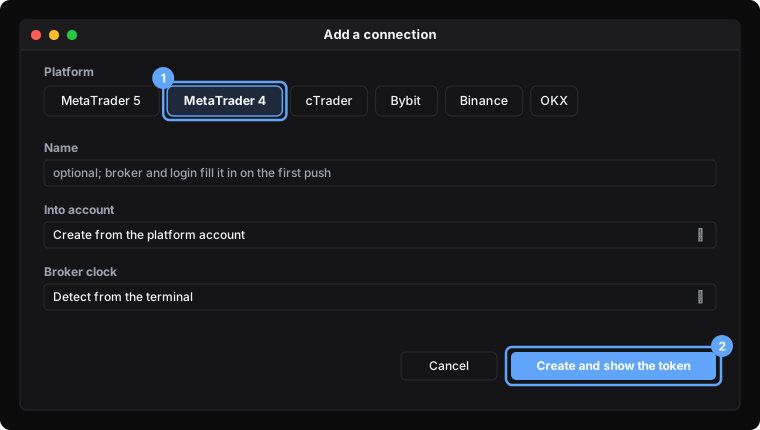
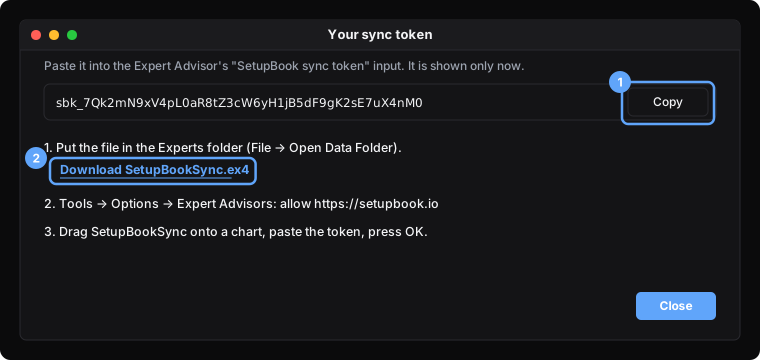
A dialog shows your sync token, a long code that starts with sbk_. Press Copy. The token is shown only this once; if you lose it, open the connection later and press New token. On the same dialog click Download SetupBookSync.ex4 and keep the file somewhere easy to find, for example on the desktop.
2. Put SetupBookSync.ex4 in the Experts folder
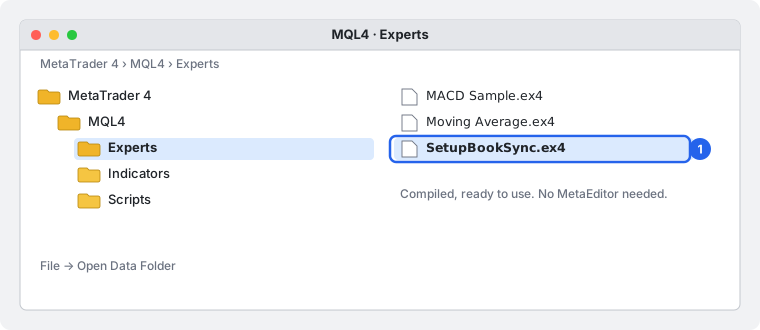
MetaTrader only sees programs that sit inside its own data folder. In MT4 open File → Open Data Folder, go into MQL4, then Experts, and drop SetupBookSync.ex4 there. The file comes compiled, so you do not need MetaEditor or any programming.
On Windows
File → Open Data Folder opens the right place at once, usually a folder under C:\Users\<your name>\AppData\Roaming\MetaQuotes\Terminal. Open MQL4 → Experts and paste the file.
On Mac
The Mac version of MetaTrader 4 runs inside a small Windows layer, so File → Open Data Folder opens a Windows-style window that starts at Desktop. Do not look for the folder there. Click My Computer → (C:) → Program Files (x86) → MetaTrader 4 → MQL4 → Experts and drop the file in.
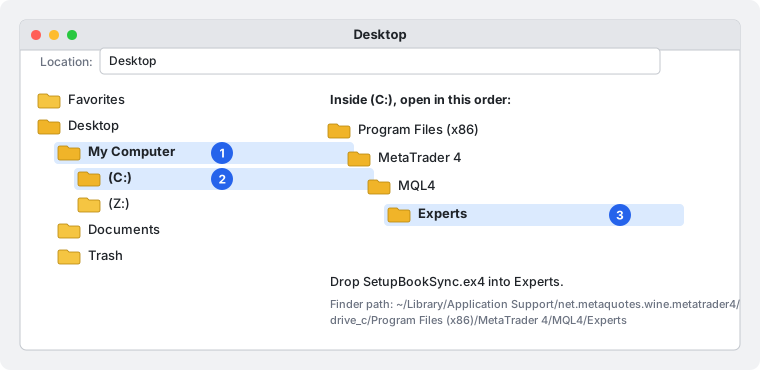
In Finder the same folder is at ~/Library/Application Support/net.metaquotes.wine.metatrader4/drive_c/Program Files (x86)/MetaTrader 4/MQL4/Experts. Press Cmd+Shift+G in Finder and paste that path if you prefer. Brokers' own Mac builds use a similar folder with the broker's name in it.
Back in MT4 open the Navigator panel (View → Navigator, or Ctrl+N), right-click Expert Advisors and choose Refresh. SetupBookSync appears in the list. If it does not, close MetaTrader and open it again.
3. Allow setupbook.io in Options
MetaTrader blocks every internet request from a program unless you allow the address first. Open Tools → Options, go to the Expert Advisors tab, tick Allow WebRequest for listed URL, double-click the empty line below it, type https://setupbook.io and press OK.
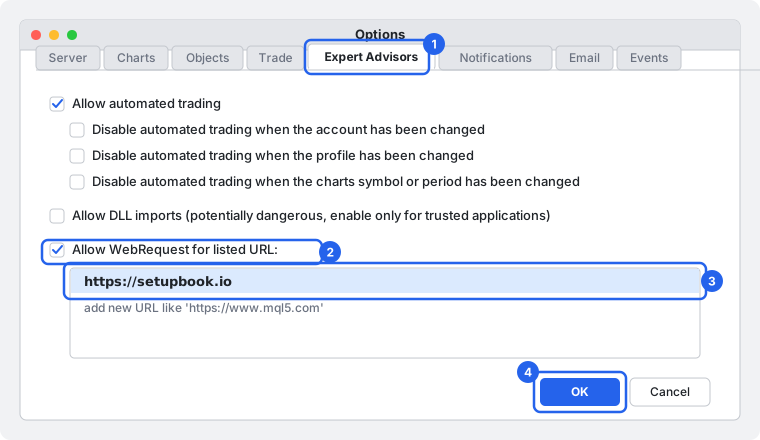
Type the address exactly as shown: https://setupbook.io, no www, nothing after .io. This is the step people skip most often; without it the chart says cannot reach.
4. Turn on AutoTrading and put the file on a chart
Look at the toolbar: the AutoTrading button must be green. If it is red, click it once. Without it MetaTrader runs no Expert Advisor at all, ours included.
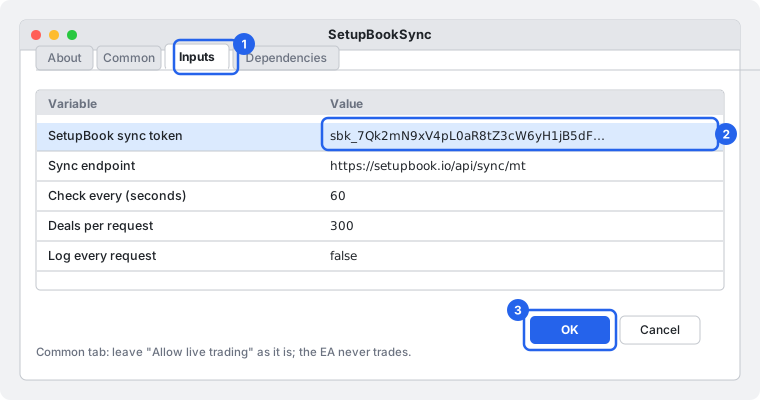
Now drag SetupBookSync from the Navigator onto any open chart. The symbol and the timeframe do not matter. A window opens: go to the Inputs tab, double-click the value next to SetupBook sync token, paste the token and press OK.
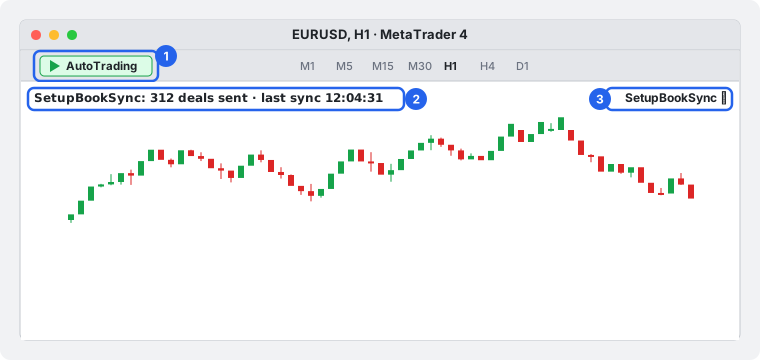
The top-left corner of the chart shows what SetupBookSync is doing. The top-right corner shows its name with a small smiley. A smiley means it is running; a crossed-out face means AutoTrading is off or the program was not allowed to run.
5. Show the whole account history
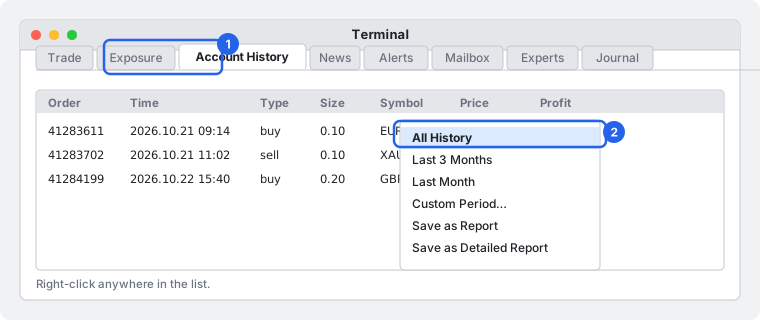
MetaTrader 4 lets a program see only the trades that are visible in the Account History tab, and by default that is the last few days. In the Terminal panel at the bottom (Ctrl+T) click Account History, right-click anywhere in the list and choose All History. SetupBookSync then sends everything.
6. Check that the trades arrived
Within a few seconds the status in the chart corner changes to the number of deals sent. In SetupBook open Settings → Connections: the card now shows your broker and login, a Demo badge when it is a demo account, and the time of the last sync. A SetupBook account named after the broker and login was created for you, and your trades are under Trades.

If the account history was empty, for example on a brand new demo, open and close one small trade. It shows up in SetupBook within seconds.
What happens after the setup
- A new trade arrives within about five seconds of closing, as long as MetaTrader is open.
- The stop and target of your open positions are refreshed once a minute, so a moved stop shows as moved in the journal.
- While MetaTrader is closed nothing is sent. The next time you open it, SetupBookSync sends what you missed.
- The fields that came from MetaTrader (symbol, side, prices, size, commission, swap, net result) are locked in the journal and stay exact. Everything you add (plan, setup quality, mistakes, notes, screenshots) stays yours.
- Demo or live is read from the terminal. A prop firm account arrives as live; change the account type to prop in SetupBook if you want the daily limit and the challenge tracking.
- You can stop the sync at any time: remove SetupBookSync from the chart, or press New token or delete the connection in SetupBook. The trades already in the journal stay and become editable.
If something does not work
Frequently asked questions
Is it safe? Can SetupBookSync trade on my account?
No. It only reads the account history and the open positions. It has no code that places, changes or closes orders, and it never sees your password. The only secret it holds is the token, which can only write into your own SetupBook journal. The source code is public, so anyone can check.
Does it work with every broker?
Yes. It needs MetaTrader 4 build 600 or later, which every broker has shipped since 2014. Demo and live accounts work the same way.
Does it work on Mac?
Yes, with the Mac version of MetaTrader 4 from MetaQuotes or from your broker. The only difference is where the Experts folder is, shown in step 2.
Can I connect more than one MT4 account?
Yes. Create one connection per account in SetupBook, each with its own token, and put SetupBookSync on a chart in each terminal. Every account gets its own SetupBook account.
What happens when my computer is off?
Nothing is sent while MetaTrader is closed. When you open it again the sync catches up from where it stopped. If you want trades to arrive while your computer is off, run MetaTrader on a VPS.
Do I need MetaEditor or any programming?
No. The MetaTrader 4 file comes compiled. You only copy it into a folder.
What do the other inputs of the Expert Advisor do?
Leave them as they are. Sync endpoint is SetupBook's address. Check every (seconds) is how often the open positions are refreshed, sixty by default. Deals per request is the page size of the first full sync. Log every request prints each request and answer to the Experts tab, useful only when something fails. The full source is published at /ea/SetupBookSync.mq4, so you can read exactly what leaves your terminal.
Does it cost anything?
No. The sync and the journal are free.
Prefer typing trades by hand or importing a report file? Both still work: see the user guide and the import guide. For how the other platforms connect, read the overview of every connection.