BingX is different from the other exchanges in one way that matters: its API serves only the last 7 days of fills. SetupBook cannot go further back than that on day one. What it does instead is keep the connection on and pull every hour, so the history builds up from the day you connect. The sooner you connect, the more you keep. It takes about five minutes.
This guide shows each step with pictures. For how every platform connects, read the overview of all connections. If you also use MEXC, see the MEXC guide.
Before you start
- A SetupBook account with Pro. Connecting a platform is part of Pro, and every journal starts with 14 days of it: start 14 days free.
- A BingX account. BingX asks for a security check (Google Authenticator or SMS) when you create a key.
- The list of pairs you trade, such as BTC-USDT.
- Five minutes.
The key only reads. You tick Read and leave Spot Trading, Perpetual Futures Trading and Withdrawal off. SetupBook never places an order and never moves money. It stores the key sealed on the server and uses it to read your fills.
1. Open API Management and create a key
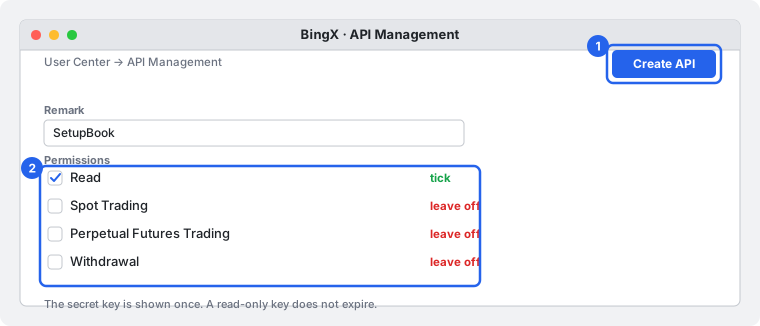
On the BingX website open your User Center and choose API Management, then press Create API. Give the key a name you will recognise, for example SetupBook.
2. Tick Read and nothing else
Tick Read. Leave Spot Trading, Perpetual Futures Trading and Withdrawal off. BingX says a key with read-only access does not expire, even without an IP restriction. Keys that can trade and have no IP are deleted after 14 days without use, which is another reason to keep this one read-only.
IP restriction: leave it off. We cannot give you a fixed address to allow yet. If you want one, ask us through the feedback form under the connections. With a read-only key nothing can be traded or withdrawn either way.
3. Copy the API key and the secret
Confirm the security check. BingX shows the API key and the secret key. The secret key is shown only once, so copy both into a safe place straight away. If you lose the secret, make a new key.
4. Paste them into SetupBook and name your pairs
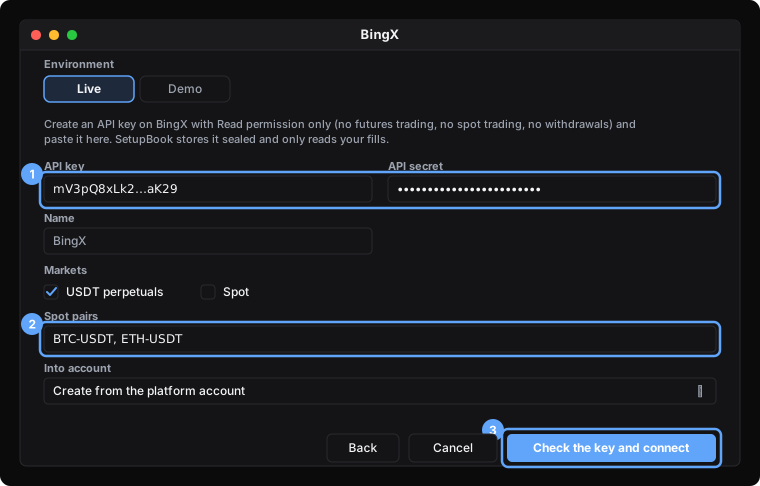
In SetupBook open Accounts → Connections and press Add connection. Choose BingX, leave Environment on Live, and paste the key into API key and the secret into API secret.
Under Markets tick what you trade: USDT perpetuals and Spot. BingX needs the pairs named, for perpetuals and for spot. Write the ones you trade in Spot pairs, separated by commas, for example BTC-USDT, ETH-USDT. Pairs with an open position and pairs of coins you hold are added by themselves.
Leave Into account on Create from the platform account, or pick one of yours, and press Check the key and connect.
SetupBook proves the key by reading your balance. BingX does not tell a key's permissions to the key itself, so SetupBook cannot warn you if you ticked a trading box by mistake. Look at the key's permissions on BingX once to be sure.
5. Watch the first sync
The first sync starts at once and reads the last 7 days. When it finishes, the connection shows Active, the time of the last sync and the number of trades. After that SetupBook looks for new fills every hour, and you can press Sync now at any moment.

What you get:
- A history that grows. Day one shows the last 7 days. Every hour after that adds what is new, so keep the connection on. A week with the connection off is a week you lose, because BingX will not serve it later.
- Positions, not loose fills. Fills are grouped into positions the same way as the file import, so a position closed in three parts is one trade with three exits.
- Locked fields. Symbol, side, times, prices, size, fees and the net result come from BingX and stay exact (they feed your net P&L). On perpetuals BingX gives no realised profit on a fill, so SetupBook works it out from the prices. Plan, setup quality, mistakes, notes and screenshots stay yours.
- Time zone. BingX times are UTC, so there is nothing to set.
- Not included. Coin-margined (inverse) contracts and funding payments are not read.
Older trades have to come in as a file. If you can export your BingX history as a CSV, the import's Other CSV option maps its columns: see the import guide. The two paths skip duplicates against each other.
Demo trading
BingX has demo trading with virtual money (VST). On BingX switch to demo trading, create an API key there and paste it in SetupBook with Demo chosen in the Environment box. Its trades land in a Demo account. We have not been able to confirm from BingX's own pages whether the demo needs separate keys, so if a live key is rejected on Demo, try a key made in demo mode.
Replacing a key
Open the connection's menu, choose Edit and press Replace the key. Paste the new key and secret and save: SetupBook checks them, forgets the old ones and uses the new ones from the next sync. The trades stay.
Problems
Trouble connecting? Write to us from the connections page with what you tried. We answer by email within 30 minutes, every day.
Frequently asked questions
Is it safe? Can SetupBook trade or withdraw?
No. A key with only Read cannot place an order or withdraw, and SetupBook has no code that tries. The key is stored sealed on the server and is never sent to your browser. To stop, delete the key on BingX and the connection stops.
Why only 7 days of history?
BingX's API serves fills for the last 7 days only, for both perpetuals and spot. SetupBook cannot ask for more. The connection pulls every hour, so what BingX serves today is kept for good.
Why do I have to list my pairs?
BingX's calls need a pair name. You list the pairs, and SetupBook adds the pairs with an open position and the pairs of coins you hold on top.
Do I need to restrict the IP address?
No. Leave it off. We cannot give you a fixed address to allow yet; if you want one, ask us in the feedback form. A read-only key cannot trade or withdraw with or without an IP rule.
Does it cost anything?
Connecting is part of Pro. Every journal starts with 14 days of Pro, and nothing is charged in those 14 days. Cancel before they end and you stay on the free plan, which keeps manual entry.
Prefer a file? The import still works: see the user guide. To connect another exchange, read the Bitget guide.