Quantower is the platform many futures traders use on top of a prop firm's data feed. It keeps a list of every fill you made, and it can save that list as a CSV file. SetupBook reads the file as it is: no API key, nothing to install. Export, drop, check the preview, import. This guide shows the clicks, says what the file holds, and names the one thing to check after the first import.
Whichever feed Quantower runs on, the file is the same. If your firm gives you another platform, those have their own guides: TopstepX, Tradovate, NinjaTrader 8 and R Trader Pro.
Before you start
- A SetupBook account. File import is part of Pro, and every journal starts with 14 days of it: start 14 days free.
- An account in SetupBook of type Prop for the evaluation or the funded account, so the prop firm rules sit on the dashboard. The prop firm journal page explains the three meters.
- Quantower open and logged in to the account you want to journal.
1. Open the Trades panel
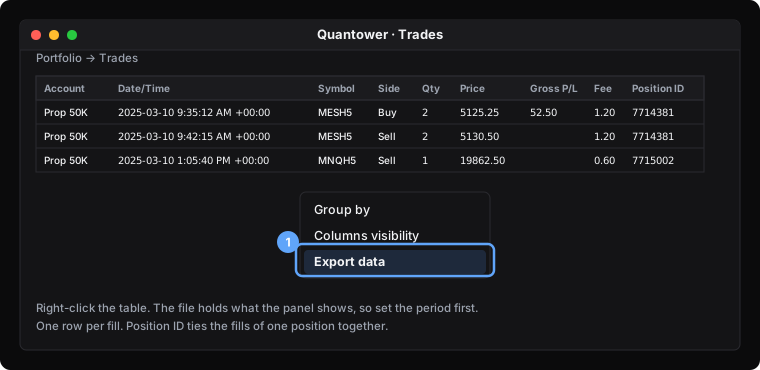
Quantower has a panel called Trades in its Portfolio group. It lists your trading history, every past trade on all your accounts, one row per fill. Open it from the panel menu if it is not on your screen. Do not use Orders history for this guide: that panel lists orders, and the Trades panel is the one SetupBook reads.
The file holds what the panel shows, so set the period you want in the panel first. If you want the whole history, make sure the panel is not narrowed to one day.
2. Right-click and choose Export data
Right-click the table and choose Export data. In some versions the same command sits in the panel's own menu. A small window opens.
3. Pick CSV, tick every column and export
Choose CSV as the type. Tick all the columns: SetupBook needs Date/Time, Symbol, Side, Quantity and Price, and uses Fee, Gross P/L, Symbol type, Account and Position ID when they are there. Press Export file and choose where to save it.
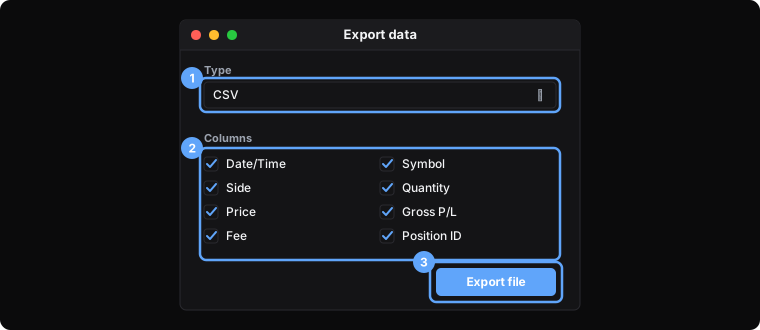
If the file is empty, the panel showed no trades for the period. Widen the period and export again. Importing the same trades twice does no harm: SetupBook skips rows whose id is already in the journal.
4. What the file contains
Each row is one fill, not one trade. The columns that matter:
- Date/Time. Every time in the files we know ends with its own offset from UTC, for example
9:35:12 AM +00:00. When it does, SetupBook reads the offset and ignores the zone selector for this file. If your times have no offset, pick the zone that Quantower shows in the import window. - Symbol and Symbol type. For a futures contract such as
MESH5(March 2025), SetupBook keepsMESas the symbol, so the same instrument stays one line in your statistics across every quarter, and writes the full contract name in the trade's note. - Position ID. It ties the fills of one position together. SetupBook pairs the fills of a position into one trade: a position built in two buys and closed in one sell is one trade with three fills. Without this column the fills are paired by symbol in time order, and the result is usually the same.
- Gross P/L and Fee. The net result is the sum of Gross P/L minus the sum of Fee. Check one trade after your first import: open it in SetupBook and compare its net with the same trade in Quantower. If the numbers differ, tell us through the contact form and we adjust the rule.
If the file holds several accounts, SetupBook never pairs fills of two accounts with each other. In the import window the Account choice may offer The accounts named in the file, which keeps them apart.
5. Import into SetupBook
In SetupBook open Trades and press Import. Drop the CSV on the file area. The format reads Detected: Quantower trades (CSV). Choose the account. Read the preview: symbol, side, size, entry, exit and net for every row, and Already there on any trade the journal already has. Press Import.
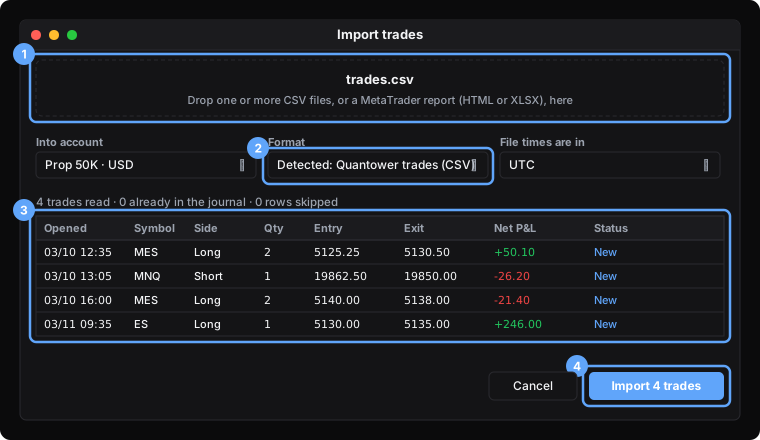
After the import, select the new rows in the Trades table and set the strategy, the mistakes or the session for all of them at once. The import guide has more on tagging old trades in bulk.
Problems
- The file is empty. The panel showed nothing. Widen the period and export again.
- "The layout is not recognised." The file is missing columns SetupBook needs. Export again with every column ticked.
- Every trade says Already there. The file was imported before. Nothing is written twice.
- A position stays open. The closing fill is not in the file. Widen the period so the file includes the day the position closed.
- A net figure differs from Quantower. Compare the fees first. If Gross P/L in your file is already net of fees, tell us and we adjust the rule for everyone.
Trouble importing? Write to us from the contact page with what you tried. We answer by email within 30 minutes, every day.
Frequently asked questions
Does SetupBook connect to Quantower through the API?
No. Quantower runs on top of your broker's or firm's feed, and the file covers the same trades for free, so the file comes first.
Which time zone should I pick?
None, if every time in your file ends with an offset like +00:00: SetupBook uses that. The selector only matters for files without an offset.
Does the file include fees?
Yes, in the Fee column. The net result is Gross P/L minus Fee. Check one trade after the first import, because the sign of the Fee column is not documented in Quantower's help.
Can I import the same file again next week?
Yes. SetupBook skips the rows it already has. Export the whole month each time if that is easier.
Does the file work for any prop firm?
Yes, as long as the account trades in Quantower. The file does not depend on the firm.