Tradovate is the platform behind most futures prop firms: Apex, MyFundedFutures, Take Profit Trader, Earn2Trade, Lucid, Tradeify, FundedNext Futures and more. It has an API, but Tradovate gives API keys only to live accounts with at least 1,000 dollars and a paid add-on, and prop firm and evaluation accounts are not eligible. No journal can sync a prop account from Tradovate. The way in is a file, and this guide shows which file, how to get it, and what it does not contain.
The same firms often hand out a NinjaTrader licence with the account. If you trade through NinjaTrader 8 instead of the Tradovate screen, follow the NinjaTrader guide; both files end in the same place.
Before you start
- A SetupBook account. File import is part of Pro, and every journal starts with 14 days of it: start 14 days free.
- A Prop account in SetupBook for the evaluation or the funded account, with the firm's limits on it. The prop firm journal page shows the meters.
- Tradovate open, desktop or web, logged in.
1. Open Account reports
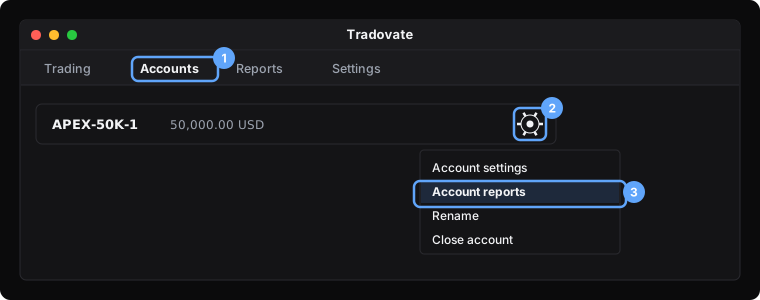
Click Accounts at the top of Tradovate and choose the account. Next to the account name there is a small gear. Click it and choose Account reports.
2. Download the Orders report
The reports window has tabs: Orders, Fills, Cash history, Performance. Open Orders. Set the first and last day and click Go. Then click Download Report (some versions call it Download CSV).
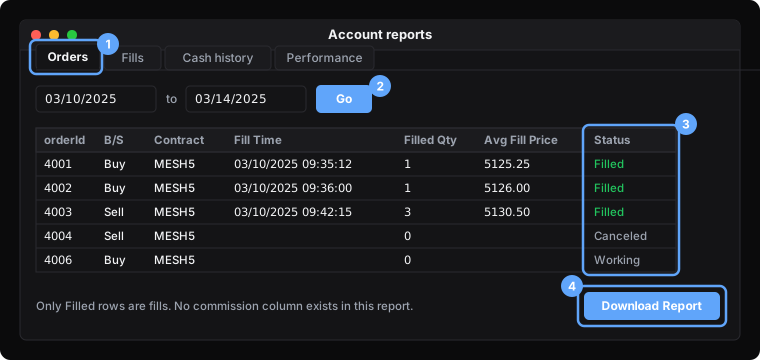
The file has one row per order, 26 columns, and a Status for each: Filled, Canceled, Rejected or Working. Only Filled rows are fills. SetupBook takes those, pairs every fill into a round trip, and ignores the rest. Two buys of one contract and one sale of two become one trade; a sale of three becomes that trade plus a new short of one. The order id of the first fill becomes the trade's id, so a second import of the same file changes nothing.
3. Pick the time zone
Tradovate writes the times in the platform's local clock, usually the clock of your computer, and the file carries no offset. When you import, set File times are in to the zone your computer was in when you traded. If you travel, export and import per trip.
4. Know what the file does not have: fees
The Orders report has no commission column. SetupBook shows a notice above the preview and imports every trade with a cost of zero, so every net result is before fees. Your firm's dashboard shows the figure after fees.
Tradovate keeps the fees in a different report, Cash history, in the same window. Reading that second file and matching its lines to the trades is on our list; until then, the honest number is the gross one. If you want the cost in the journal today, set a default commission on the symbol in Settings and SetupBook applies it to new trades of that symbol.
5. Import into SetupBook
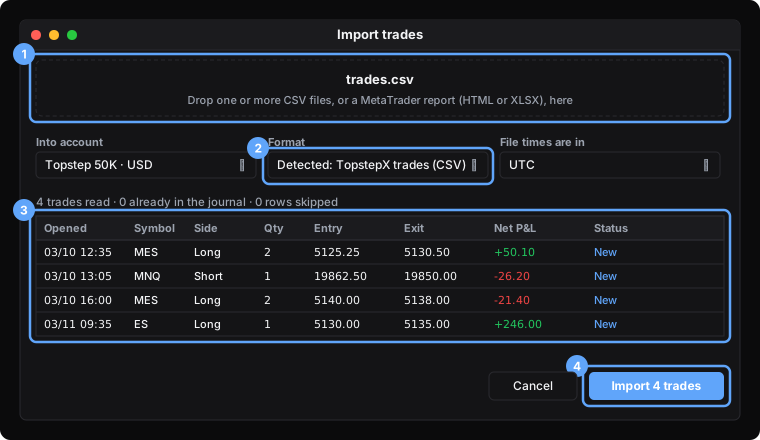
In SetupBook open Trades, press Import and drop the file. The format reads Detected: Tradovate orders or performance (CSV). Choose the account and the time zone. The preview lists the paired trades: entry, exit, size and net. Rows the journal already has say Already there. Press Import.
The Performance report
The Performance tab exports one row per round trip, with a buy fill and a sell fill, their prices and times, and the P&L. SetupBook reads it too. The side comes from the order of the two times: bought first is a long, sold first is a short. A loss is written as $(12.50) and reads as a loss. This file has no fee column either. It is a quick way to bring in a month, but it hides partial fills, so the Orders report is the better source.
Problems
- Every row is Canceled or Working. The date range holds no filled orders, or the Status column is missing. Open the Orders tab again and widen the range.
- The times are a few hours off. The zone selector does not match the computer the export came from. Import again with the right zone; the first import is skipped as duplicates only if the times matched, so delete the wrong batch first.
- The net is higher than Tradovate shows. That is the missing fee. See step 4.
- Several accounts in one file. Fills of one account never pair with fills of another, but every trade goes into the one SetupBook account you choose. Export per account for a clean split.
Frequently asked questions
Can SetupBook connect to my Tradovate prop account?
No, and neither can anyone else. Tradovate's API is closed to prop firm and evaluation accounts; it needs a live account with 1,000 dollars and a paid add-on. The Orders report is the only route, for every journal.
Which file should I export, Orders or Performance?
Orders. It holds every fill, so partial exits and flips come out right. Performance is one row per trade and is fine when you only want a quick month, but it loses the fills.
Where are my commissions?
Not in the Orders report. Tradovate keeps them in the Cash history report. SetupBook imports the trades without fees and says so above the preview; reading the Cash history file is planned.
Which time zone do I pick?
The one your computer was in when you traded. Tradovate exports in the platform's local clock and writes no offset into the file.
Does the import see the same trade twice?
No. The first fill's order id is the trade's id, and SetupBook skips any trade whose id is already in the journal.